Troubleshooting
This section details the most common error scenarios that could occur when using OBLAC Drives.
Important:Carefully read through the setup instructions. Many issues can be avoided by strictly following the instructions.
Runtime Issues
One of the most common issues appears directly after installing OBLAC Drives.
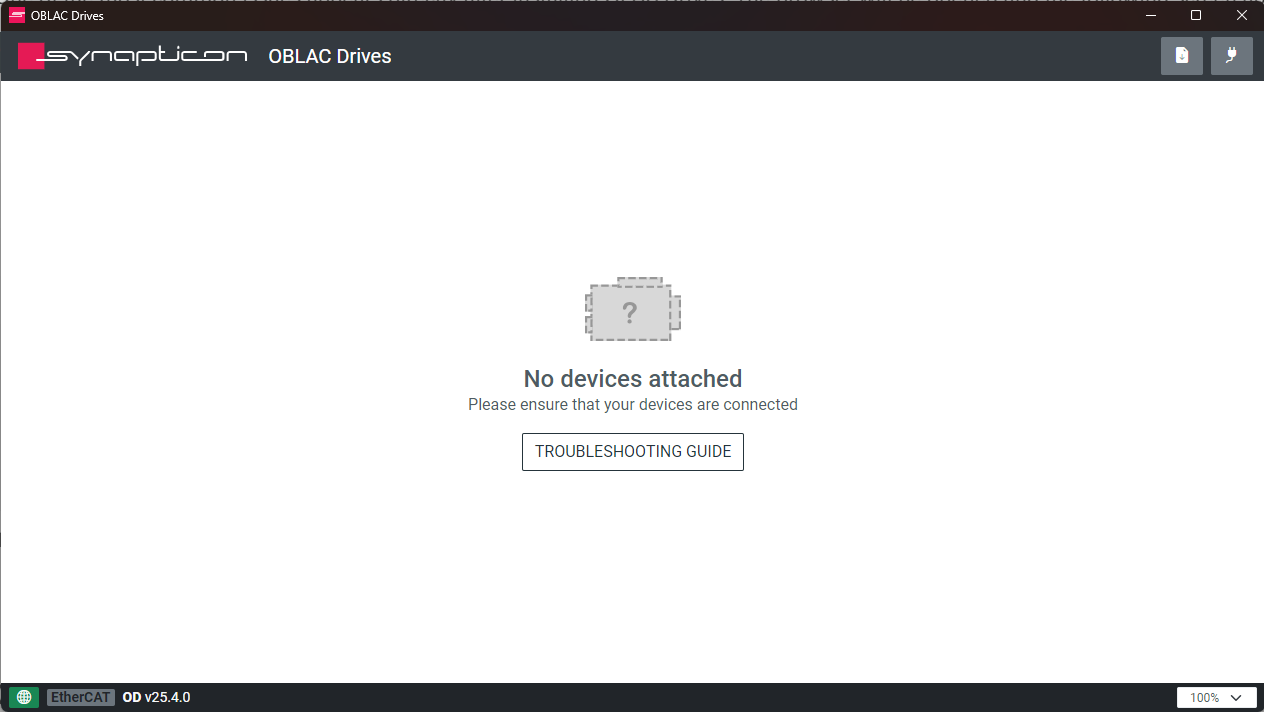
There are several causes that can lead to this problem:
-
Before starting OBLAC Drives, the drive was not powered on.
-
The wrong network port was selected.
Other Issues
If the application does not behave properly in any other way than described above, try the following:
-
If using OBLAC Box, restart the OBLAC Drives application or refresh the Web site.
-
Make sure that a native EtherCAT master is not running on the host machine or in the same network.
-
Ensure that none of the Synapticon tool components, e.g., OBLAC Drives, motion master bridge or motion-master, are currently running on the host machine as a native installation.
-
If your laptop is connected to a docking station, undock and restart it, then try to run OBLAC Drives again.
-
Other installed or running software on the PC is occupying the Ethernet port. If possible, stop or uninstall this software or try it with a fresh PC.
-
Not all network adapters are able to perform the real-time requirements for OBLAC Drives; however, network cards inside laptops and computers work reliably. Additionally, docking stations (if not connected via USB) are often reliable. A network connection via USB is difficult to predict. Some adapters work very well, others not at all. If USB is the only option, trying several adapters or a different PC may be necessary. This is most likely the cause if a connection to a drive can be established, yet the connection is interrupted frequently.
-
Limited performance of the host PC. If the general performance of the PC is insufficient, e.g., less than 8 GB RAM, low CPU frequency, or if too many applications are running simultaneously, there may not be enough resources available for the native application.
Note: If a solution to a problem cannot be found, contact Support.
Problem Report
The Save Problem Report feature collects diagnostic data from OBLAC Drives and all connected devices into a single .zip file. It is the fastest way to provide Synapticon Support with all of the information required to investigate an issue.
What’s Included
The archive contains:
-
System information - Software versions (UI, Motion Master, OD, ODUS), system logs, and application process information
-
Per-device data current parameter values, device configuration, safety parameters, cogging torque data, plant model, firmware logs (current and previous), and a full file listing from the device
How to Save a Problem Report
There are two ways to trigger it:
-
From the devices list, or
-
from the device configuration page.
Each is explained in the sections that follow.
Triggering from the Devices List
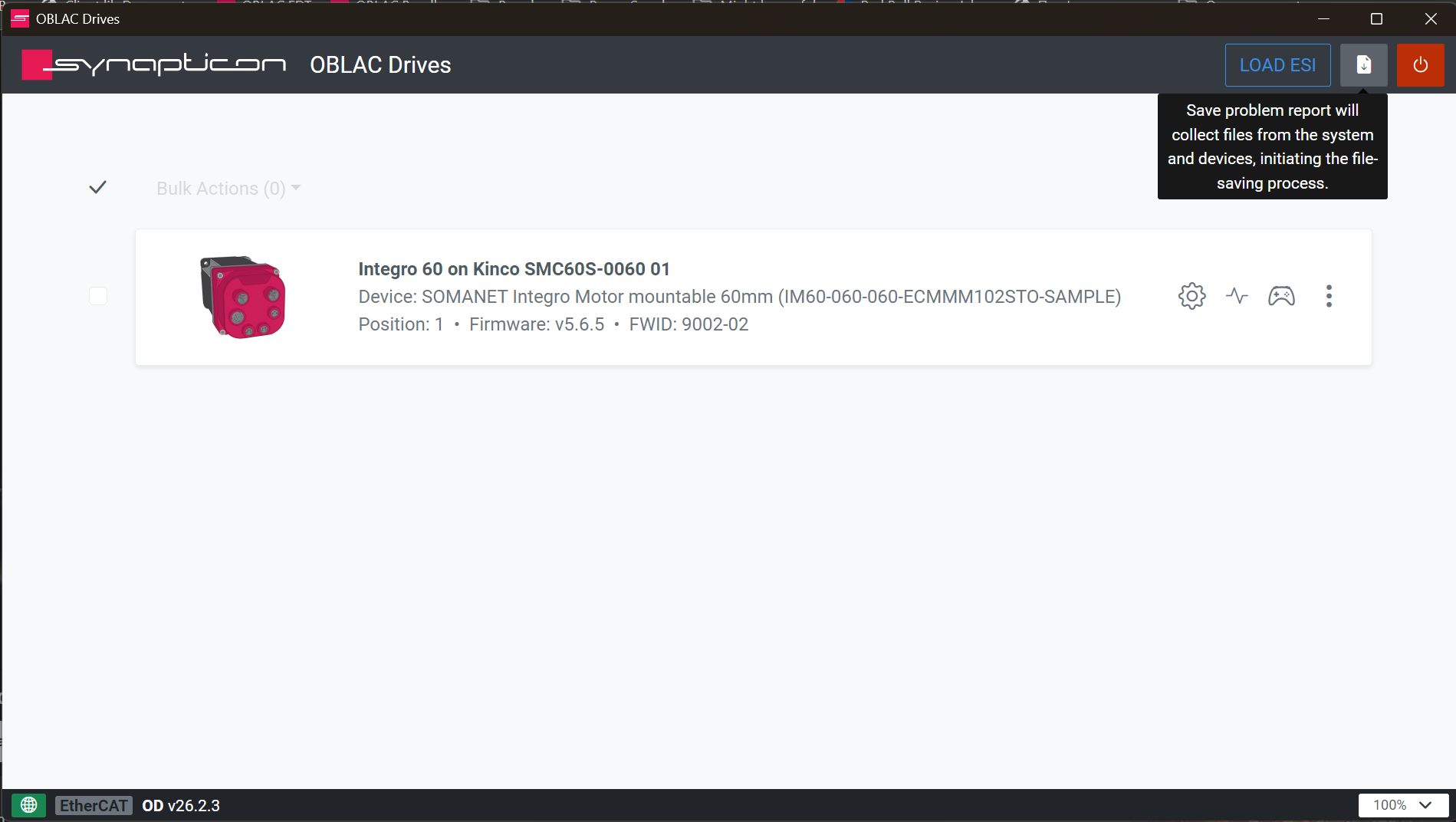
From the devices list, click the Save icon in the top-right toolbar.
A tooltip displaying Save problem report will collect files from the system and devices, initiating the file-saving process. confirms the action.
Triggering from the Device Configuration Page
From the device configuration page, open a device, then select SAVE PROBLEM REPORT (.zip) in the action list on the left side of the Device Information screen.
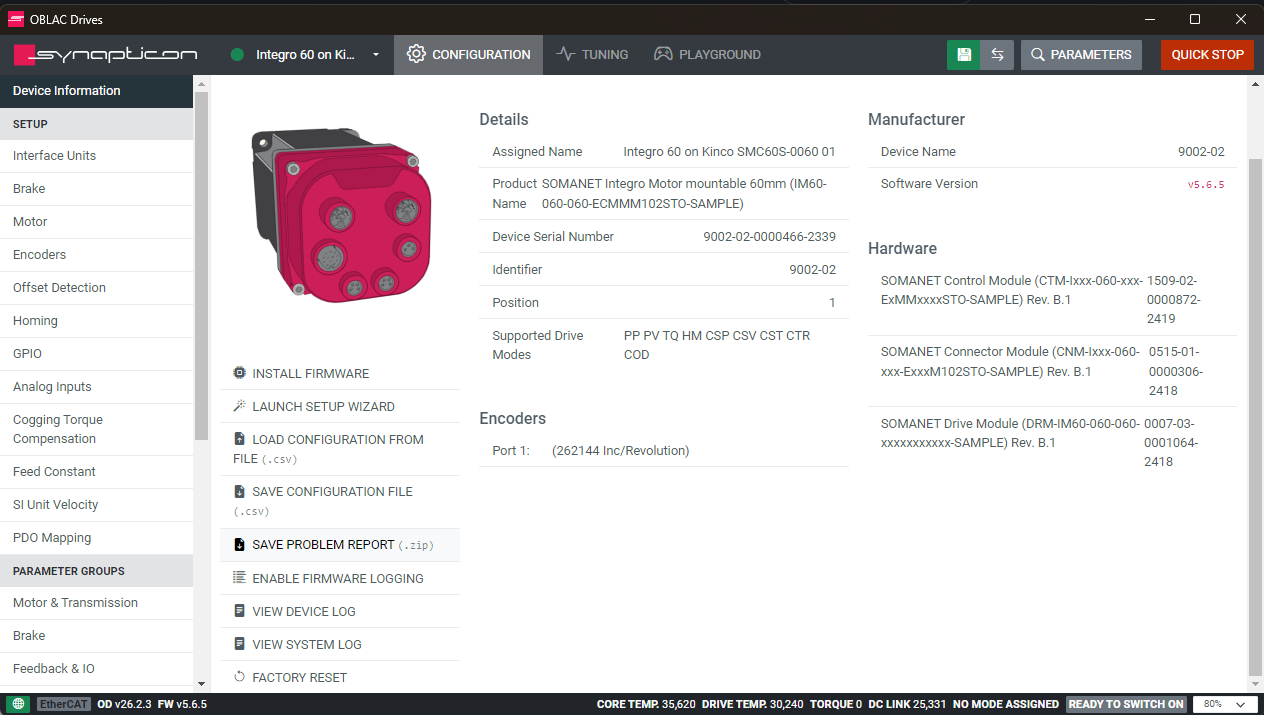
The file is saved as oblac-drives-problem-report-[DATETIME].zip.
Note: When contacting Support about an unexpected behavior or error, always attach this file to the report as it streamlines interactions significantly and accelerates diagnosis.