OBLAC Box

OBLAC Box is a physical machine that comes preinstalled with Linux OS; it runs OBLAC Drives and the related services. OBLAC Box supports access over WiFi or local area network.
| WiFi Frequency | 2.4/5 GHz (Antenna, Dual Band 2.4/5 GHz, Rubber Duck, RP-SMA) |
Connectors

Installation
OBLAC Box
Note: The power supply has an output rating of 5 VDC, 4000 mA.
OBLAC Box 2
Note: The power supply has an output rating of 12 VDC, 3000 mA. OBLAC Box 2 can be supplied with 9-36 VDC, ≥15 W.
-
Plug in the power connector; the box will automatically boot.
-
Connect one or multiple drives to the EtherCAT port 1 on the box.
-
Establish a network connection to the box by Wi-Fi or per Network Cable. See: Network Connection to the OBLAC Box.
-
Open a browser (Google Chrome preferred) and connect to the box. (See below.)
-
The OBLAC Drives dashboard appears.
-
Update the box with the latest available firmware. See: Update OBLAC Drives.
-
All connected SOMANET drives should be visible. Select the Servo Drive that is to be configured and tuned.
Attention: Ensure that the LAN ports are used correctly; the servo drives must be connected to the EtherCAT LAN port. If the ports are improperly assigned, communication to the drives and connection to the box via LAN is not possible.
Note: The HDMI port is without function. A dedicated host PC to control the OBLAC Box is required.
Multiple instances of a browser connection to a box can be established. A box can operate multiple connected drives independently; however one browser tab can only operate one drive. It is possible to connect to one drive on multiple browser instances, e.g., operate and get diagnostic information concurrently; however, the last action will override the previous. There is no interlock between the instances.

Network Connection to the OBLAC Box
Depending on different needs, several ways to establish a network connection are possible. For driving a motor, make sure that the drive is connected to the EtherCAT port. Some important device specific information is written on the sticker that is placed on the box:

Connection Host-PC ↔ Box by Wi-Fi

Note: This is the preferred way to connect to an OBLAC Box.
To establish the connection, activate the Wi-Fi on your host PC and connect to the Wi-Fi with the network name written on the box. Each box has a unique SSID. Open the Wi-Fi configuration of your PC, select the given network, and enter the password. On Windows 10, enter the password as security key:

After the Wi-Fi connection is established, open a browser (Google Chrome preferred) and enter the IP address provided by the label in your browser’s address bar (always 192.168.0.1). Alternatively, enter the URL provided on the box’s label. The OBLAC Drives dashboard appears. You can now operate connected drives with OBLAC Drives.
To perform updates, a connection to the internet - or a previously saved bundle - is required. Different ways to realize this connection are described in the following sections. A connection between the box and the internet will be indicated by the green “online” sign in the top line of the OBLAC Drives page.

Windows Connection to a WiFi without an Internet Connection
If Windows is connected to a WiFi without an internet connection, e.g., OBLAC Box direct WiFi, it rescans present WiFis for a known one with internet connection, e.g., your company WiFi. It is not clear if this occurs periodically, or is triggered by an internet request. This can seem as if the box or system is unstable.
A solution to this issue is to add a new registry key:
Computer\HKEY_LOCAL_MACHINE\SOFTWARE\Policies\Microsoft\Windows\NetworkConnectivityStatusIndicator:
Name: NoActiveProbe
Type: DWORD (32bit)
Value: 1
Note: To become active, a reboot must occur.
The register key can also be added by downloading and using the .zip file here. Once extracted, simply double-click on the .reg file within it. Note: You need admin rights for this.
Attention: If a user modifies the registry, it is at their own risk!
Host-PC Connected to the Internet by LAN Connection
If the host PC is connected to the internet by a LAN connection or a second Wi-Fi connection, the box will automatically connect to the internet through the host PC.

Box Connected to the Internet by LAN Connection
If there is no connection to the internet with the host PC possible, you can alternatively connect the OBLAC box to a network by LAN network port on the box. On this port, DHCP is configured and a DHCP server is required to give the box an IP-address.

Attention: In some companies, unknown devices will not get an IP address from the server out of security reasons. In this case this will not work. Ask your IT/network responsible if you fail to get online with the box.
Host-PC and Box Not Connected to the Internet
If neither the PC nor the box can’t be connected to the internet, the offline update by bundles can be used. See: Offline Updates.
Connection Host-PC ⇿ PC by LAN Cable
If the Wi-Fi connection of the host PC is already used for accessing the company network / internet connection, the connection to OBLAC Drives can occur by connecting the host PC to the OBLAC Box by a LAN cable. In this case, use the LAN / Network port.
LAN Connection via Switch and Connection to a Network with DHCP Server

If the box and the PC are connected to a LAN that includes a DHCP server (regularly by connecting to a switch), the box and the PC port will get an IP address from the DHCP server in the same range. To connect to OBLAC Drives, it is not necessary to know this IP-Address. It is enough to call the local URL of the Box printed on the box’s label (http://oblac-drives-xxxxxxxx.local).
Attention: In some companies, for security reasons, unknown devices will not get an IP address from the server. In this case, this will not work.
LAN Connection Peer-to-Peer

To establish a peer-to-peer connection between your PC and OBLAC Box, plug in an Ethernet cable between your PC and the LAN port of the OBLAC box. For this to work, ICS (Internet Connection Sharing) must be enabled on the PC and your PC must have an active internet connection, e.g., via WiFi.
Navigate to “View Network Connections” using Start menu / Search
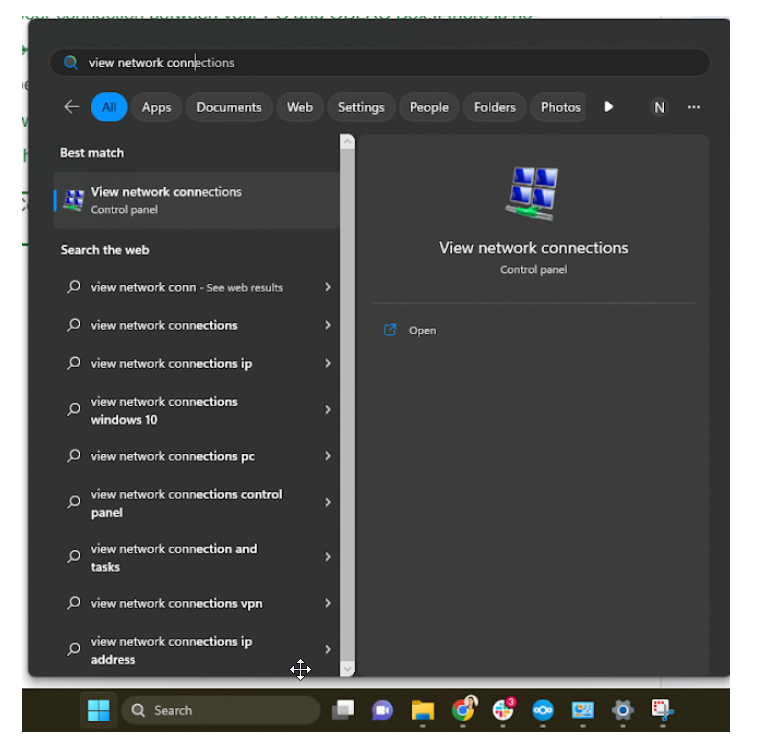
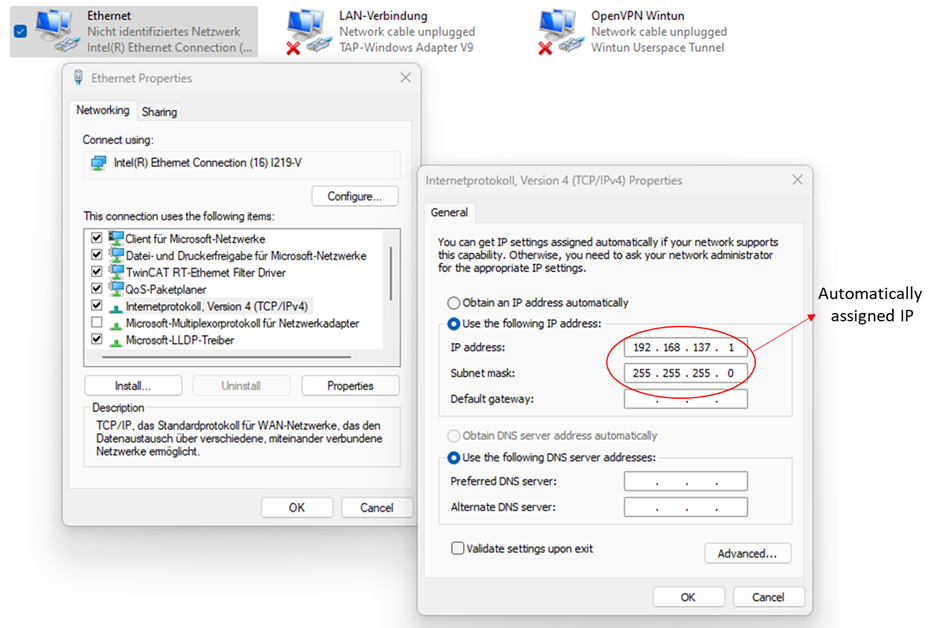
First, enable the option “Obtain an IP address automatically” in the Ethernet properties of the port to which your OBLAC Box is connected.

Then,
-
Right-click on the Port that is connected to the internet, e.g., WiFi.
-
Open properties and then the "Sharing" tab.
-
Enable the first checkbox “Allow other network users…”.
-
Select the Ethernet port that your OBLAC Box is connected to as “Home Networking Connection”.

Next, connect to the box and open OBLAC Drives out of the browser by connecting to http://oblac-drives-xxxxxxxx.local. The box specific address is located on the box’s label.
The first time after activating the ICS, it might take up to one minute until the bridging is done and you can connect to OBLAC Drives.
After enabling the ICS, an IP address will be assigned automatically to the Ethernet port of the connected OBLAC box.
No Connection to OBLAC Update Server
The box retrieves updates from an update server in the cloud. Some company firewalls block those connections. If you get fault messages regarding not being able to connect to the update server, contact your IT Support. You can either remove those blockings or continue with Offline Updates; see below.
Offline Updates
If it is not possible to get online with the OBLAC Box, the offline update with “bundles” is possible. The bundles can be downloaded from https://bundles.synapticon.com/.

There are two types of OBLAC Bundles:
-
Release bundle
This bundle includes an OBLAC Drives release, e.g. v21.0.0 and all of its supported firmwares. Install it using the Bundle Install feature in OBLAC Drives Update Service. Once installed, the selected release will run, and all of its supported firmwares will be available in the OBLAC Drives Install Firmware dialog.

-
Firmware bundle
This bundle includes files for all hardware variants of a single firmware version, e.g. v4.4.3. Install it using the OBLAC Drives Install Firmware dialog onto one or more devices.

Note: Offline update is available from OBLAC Drives version 21.0.1. upwards.
Open OBLAC Drives
Open OBLAC Drives in your web browser by navigating to the URL printed on your box.
Note: Windows users must install the Bonjour Software to open OBLAC Box at the given URL.
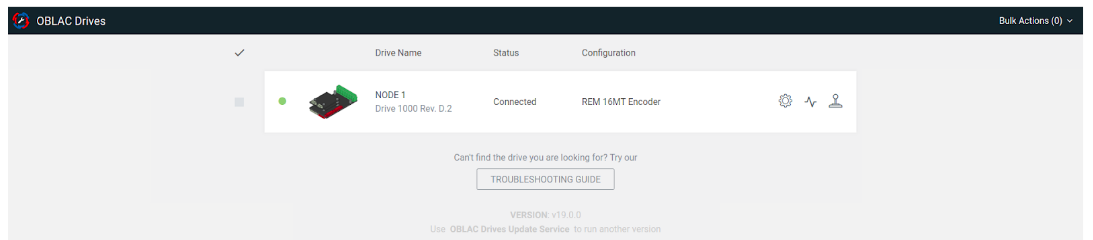
If this is not possible, you can access OBLAC Drives via Wi-Fi by entering the IP address provided on the sticker. Check in your browser that the Drive is connected:
Update OBLAC Box
Before using OBLAC Box, you must install the latest version of OBLAC Drives.
It is possible to use the OBLAC Box offline and to install and run the previous versions of OBLAC Drives. Newer versions of OBLAC Drives that get installed will be cached on the box; however, they must be downloaded from the internet.
Downloads